Advice and answers from the Rixbo Team
Manage Store Settings lets admins control store details, preferences, and configurations from one place. Admins easily update business info, units, taxes, and policies. Settings work instantly across the system, ensuring smooth operations, consistency, faster setup, and a professional store experience for customers.
Log in to the Admin panel and open the Dashboard.
Navigate to POS from the left menu.
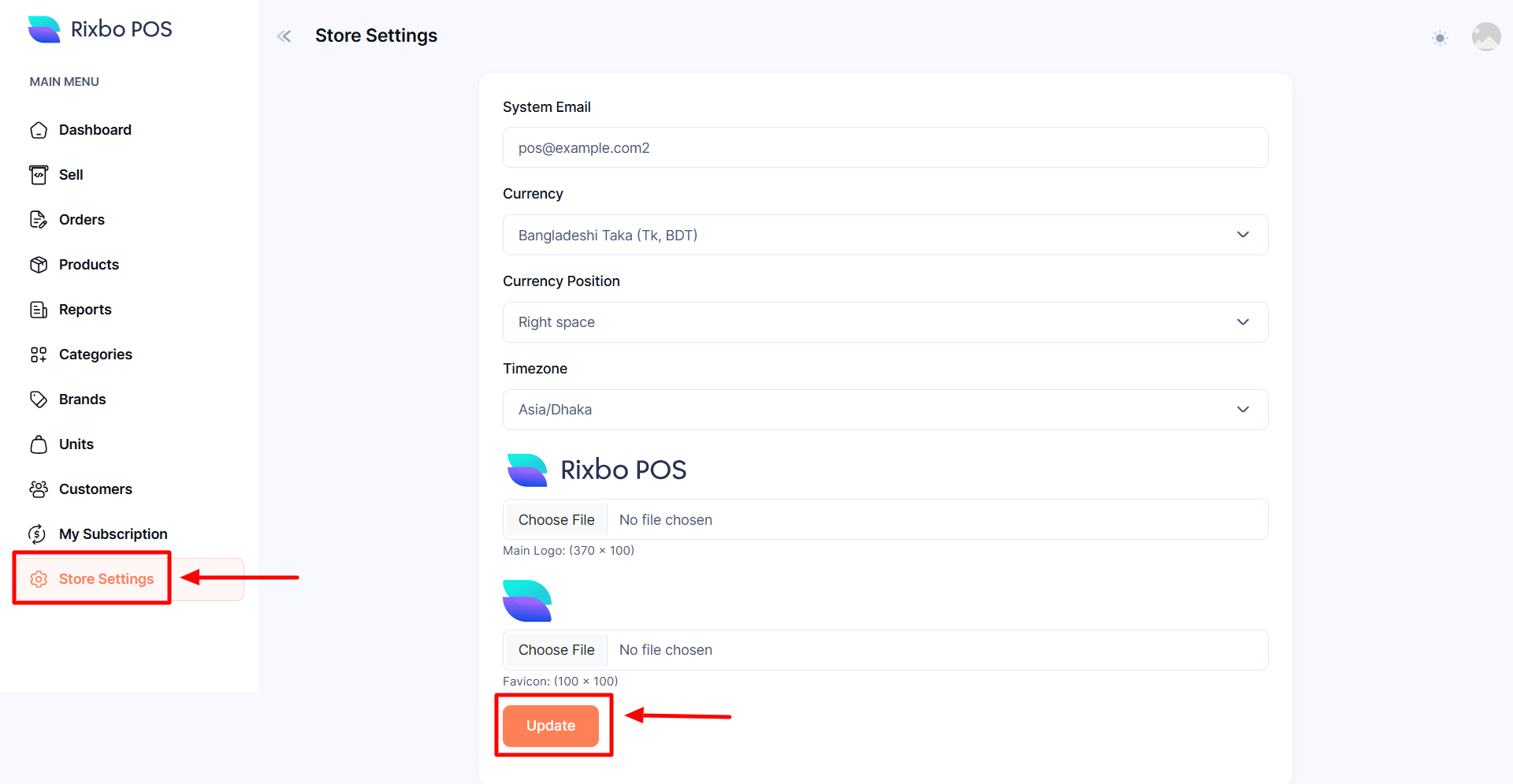
Finally, click Store Settings from the left menu, and an entry form will appear.
Fill in the following details:
System Email: Enter the desired system email in the relevant field.
Currency: Select currency from the drop-down menu.
Currency Position: Select currency position from the drop-down menu.
Tomezone: Select the timezone from the drop-down menu.
Rixbo POS: Click the Choose File button to upload the desired image.
Once all the fields are completed, click the Update button to save the information.