Advice and answers from the Rixbo Team
Manage Brands lets admins organize and showcase product brands easily. Admins can add, edit, or delete brand entries through a simple dashboard. It improves product visibility, boosts customer trust, and helps shoppers find favorite brands quickly, enhancing the overall shopping experience and increasing sales.
Log in to the Admin panel and open the Dashboard.
Navigate to POS from the left menu.
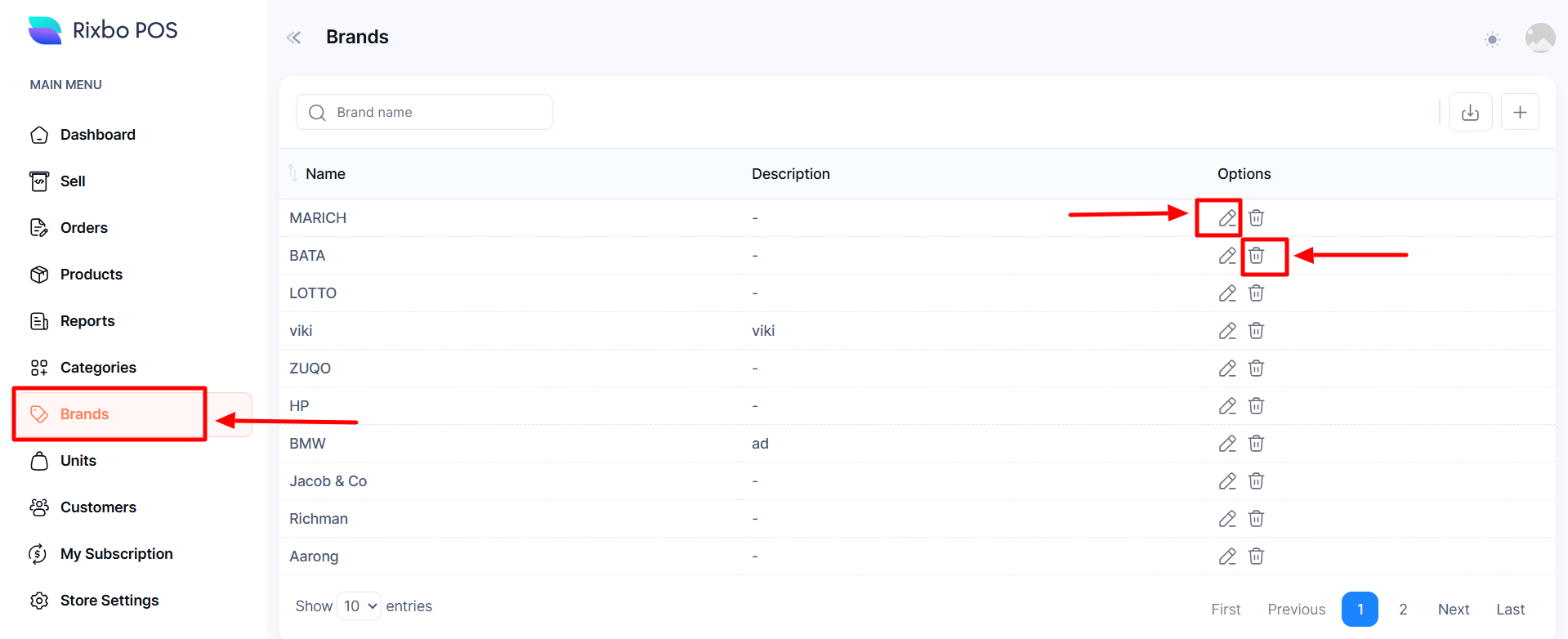
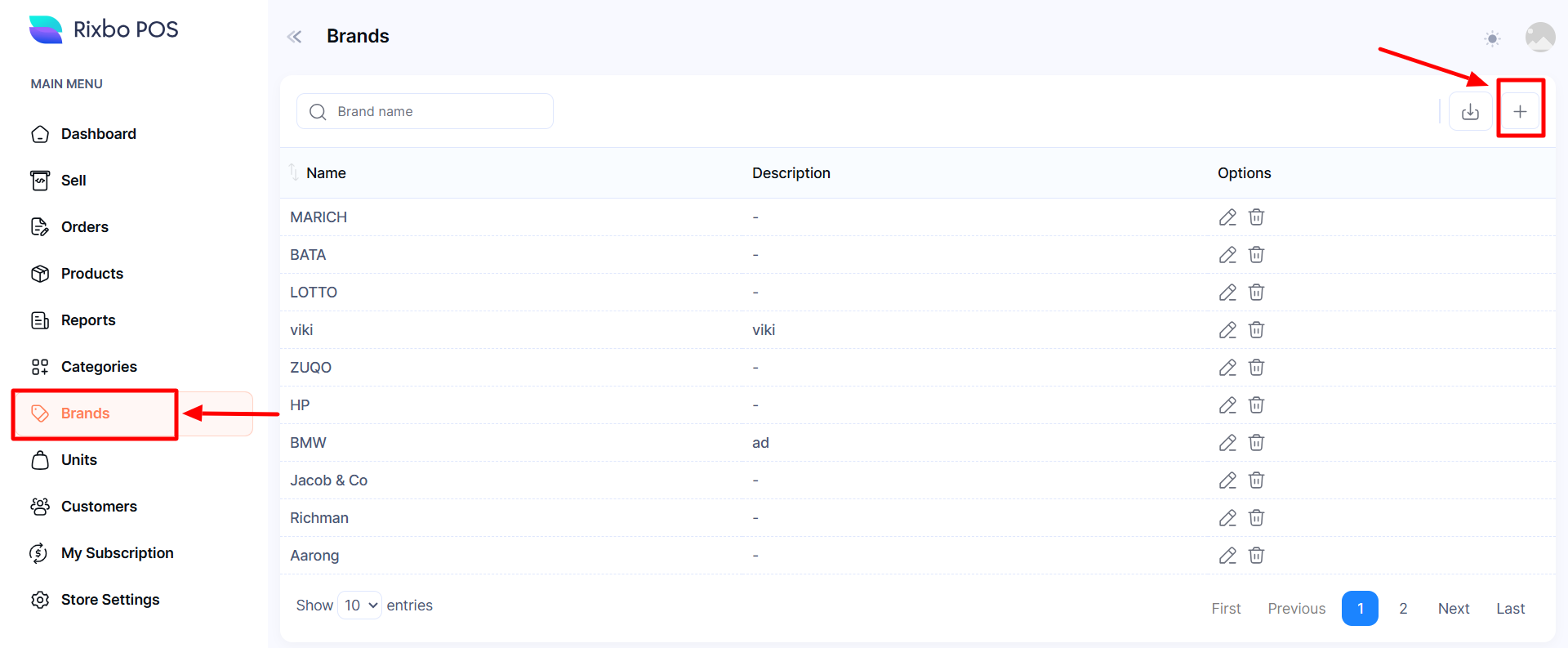
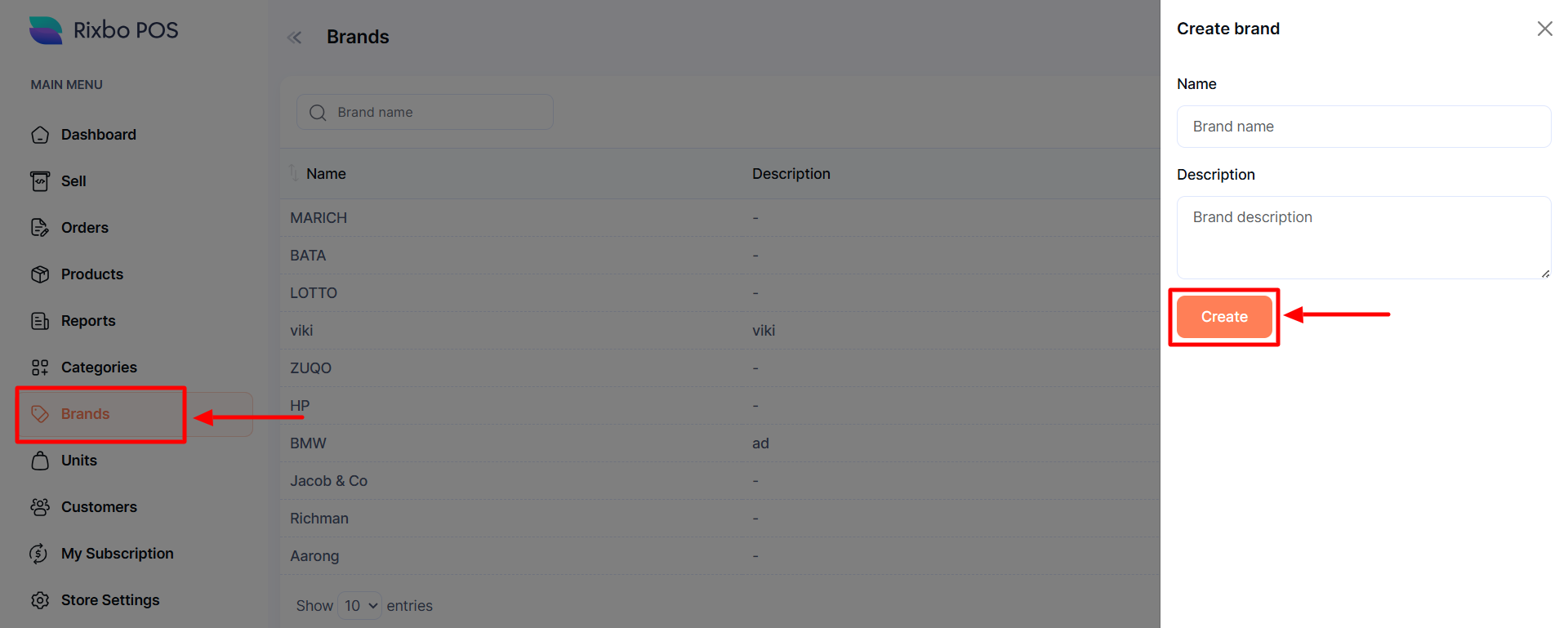
Finally, click Brands from the left menu, and a new window will appear.
Click the + (Plus) sign an entry form will appear.
Fill in the following details:
Name: Enter the brand name in the designated field.
Description: Provide the relevant brand description in the desired field.
Once all the fields are completed, click the Create button to save the information.
Log in to the Admin panel and open the Dashboard.
Navigate to POS from the left menu.
Finally, click Brands from the left menu, and a new window will appear.
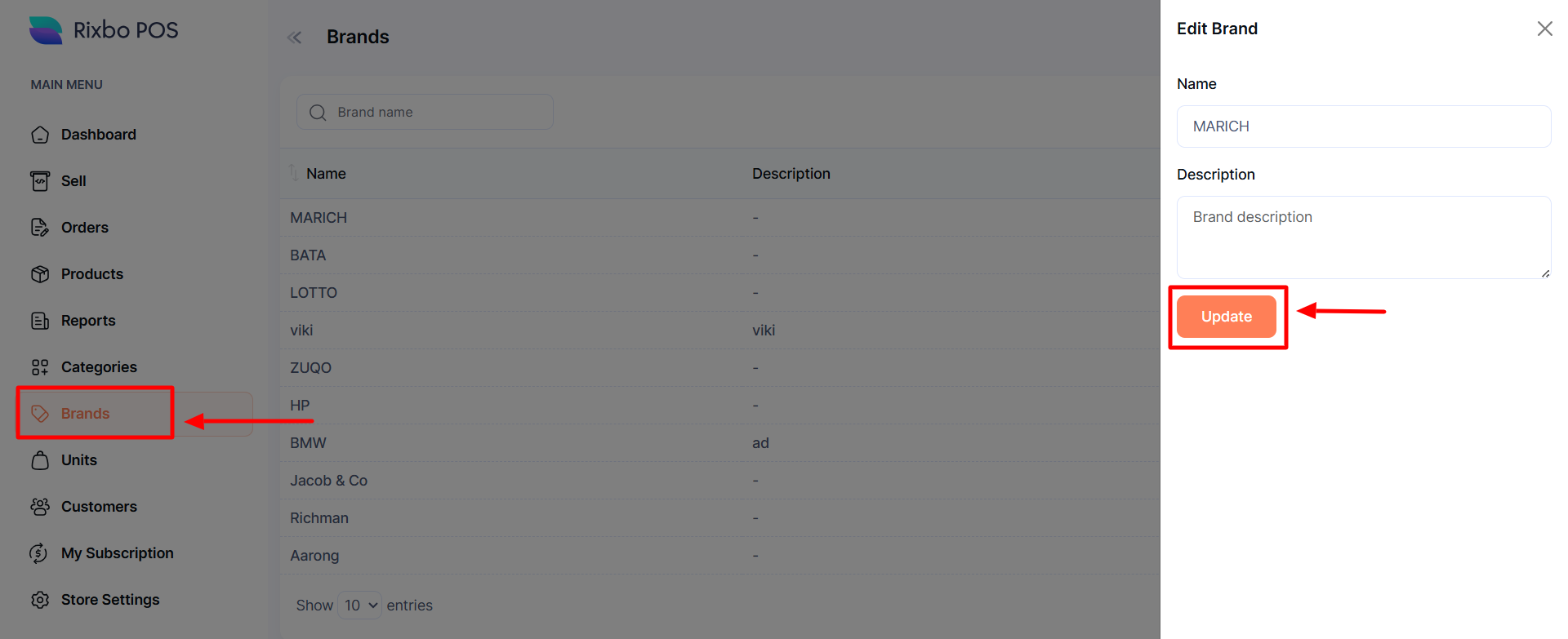
Click the Pen sign, and an entry form will appear for the respective brand.
Fill in the following details:
Name: Enter the brand name in the designated field.
Description: Provide the relevant brand description in the desired field.
Once all the fields are completed, click the Update button to save the information.
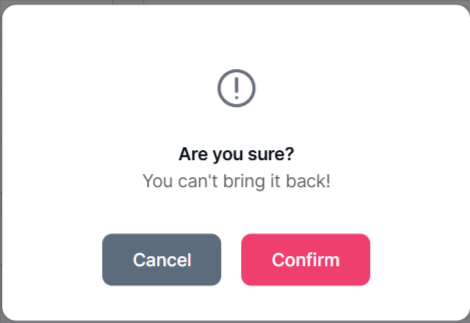
If you click the Delete button, a confirmation window will pop up.
If you click the Confirm button, the category is deleted automatically; otherwise, click the Cancel button.