Advice and answers from the Rixbo Team
Manage Orders lets admins view, update, and track all customer orders in one place. Admins can easily process order status, print invoices, and handle returns. It works through a simple dashboard, ensuring fast order handling, fewer mistakes, and happier customers with better service.
Log in to the Admin panel and open the Dashboard.
Navigate to POS from the left menu.
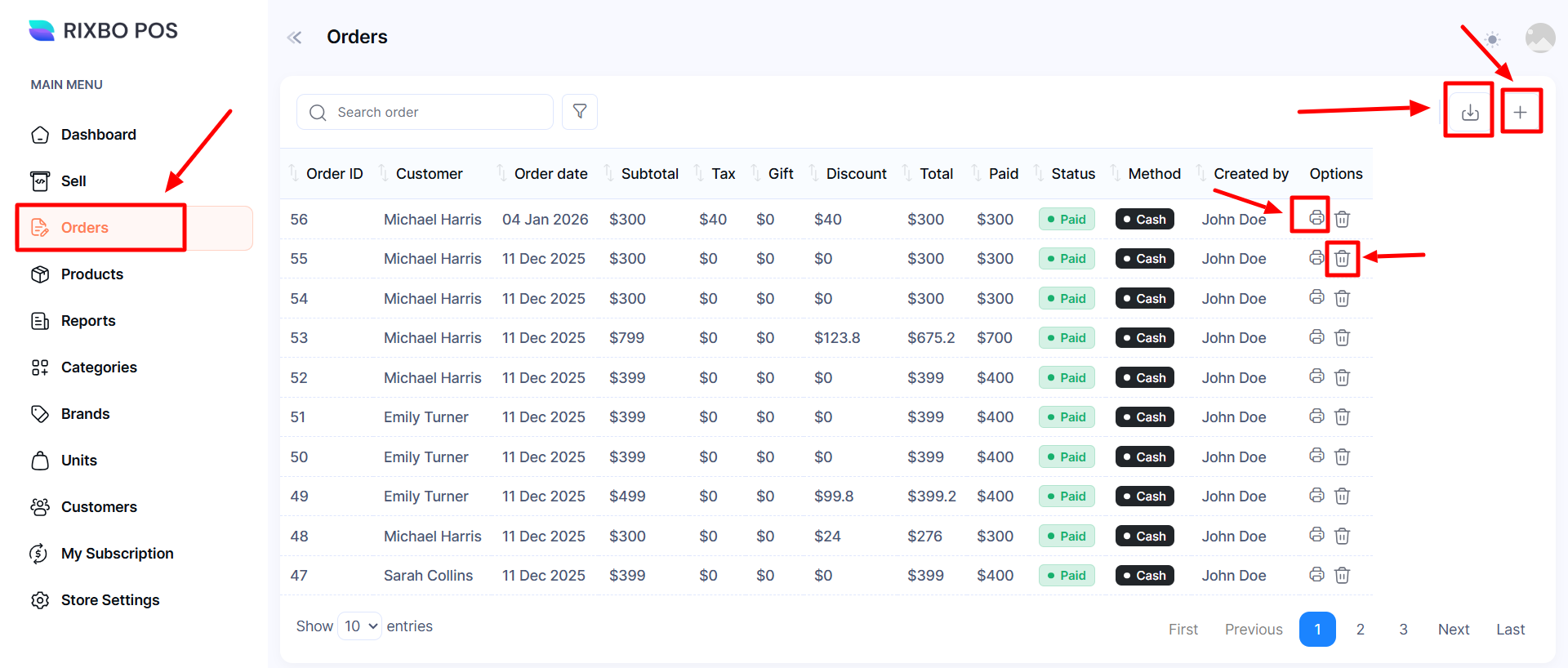
Finally, click Orders from the left menu, and a new window will appear.
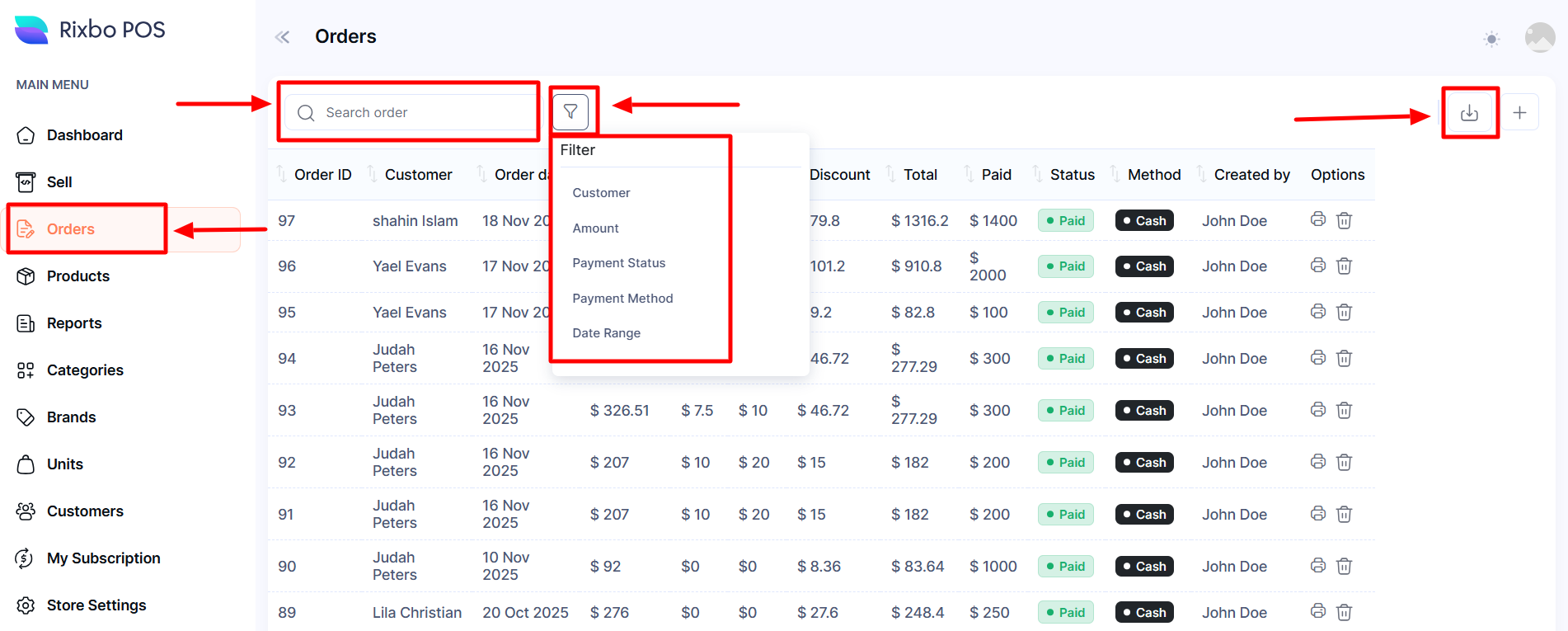
Click the Search button and type the desired Name to view.
Click the Filter button, and a new window will pop up.
Select your desired option from the drop-down menu.
Click the download button to download the appeared list in PDF or CSV form.
Log in to the Admin panel and open the Dashboard.
Navigate to POS from the left menu.
Finally, click Orders from the left menu, and a new window will appear.
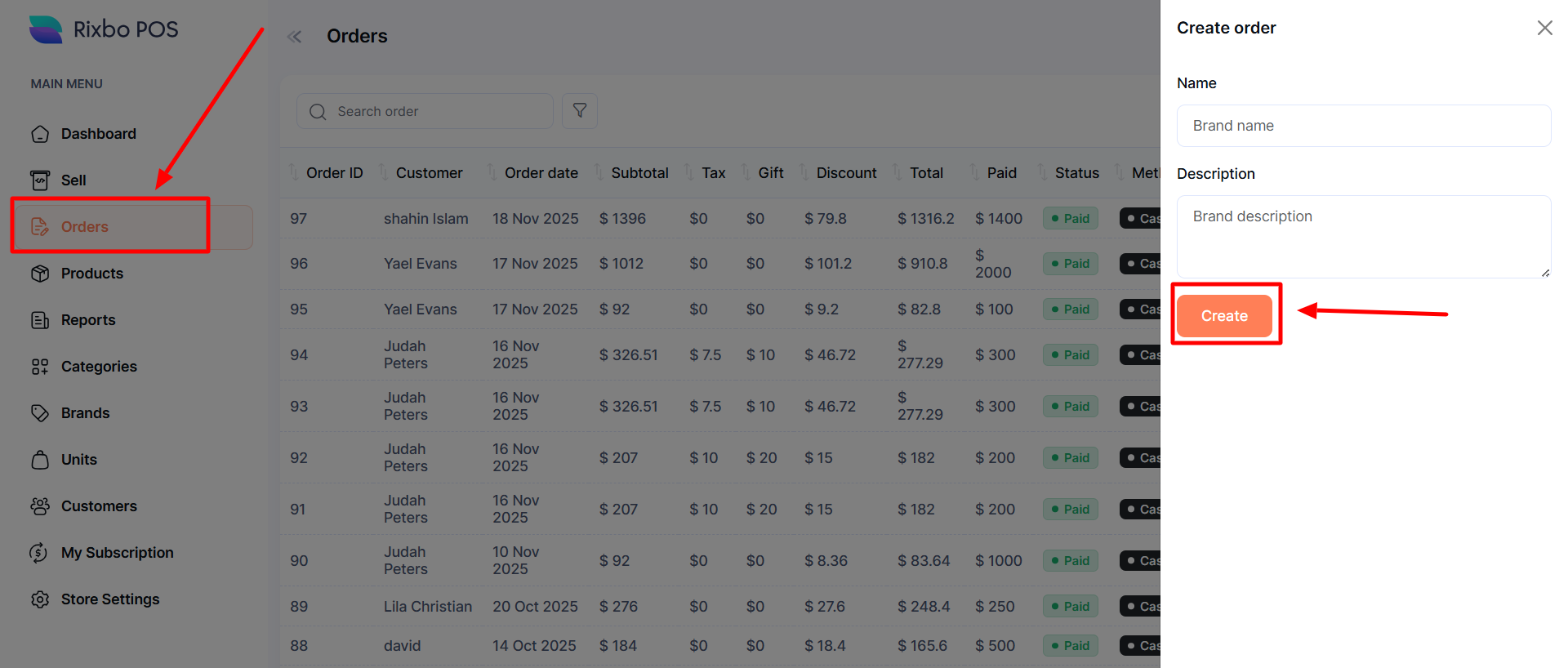
Click the + (Plus) sign an entry form will appear.
Fill in the following details:
Name: Enter the brand name in the designated field.
Description: Provide a brand description in the relevant field.
Once all the fields are completed, click the Create button to save the information.
If you click the download button, export the appeared list as a PDF or CSV file.
If you click the Print button from the options, a new window will appear for printing.
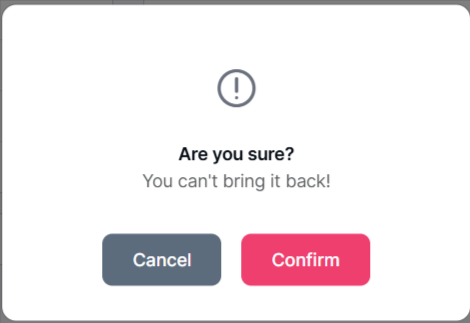
If you click the Delete button, a confirmation menu will appear.
If you click the Confirm button, the relevant order will be deleted automatically; otherwise, click the Cancel button.